
Exploitation of NEW Windows LAPS
using only LolBins
Learn how to take advantage of Local Administrator Password Solution (LAPS)
in special series on exploiting Active Directory (AD).

Welcome to the post focused on LAPS in special series of exploiting Active Directory. Each blog post dives deep into Active Directory internals and explains how then can be leveraged from an offensive security professional perspective.
This post will cover the following topics:
- What is LAPS and how it evolved
- How LAPS stores and secures passwords
- How to enumerate, abuse, and pivot using LAPS
- Real commands used to get from user to local admin
- OPSEC tips for LAPS enumeration and abuse
- How a single account, like ‘Will’, can give you keys to the kingdom
What is Windows LAPS?
Local Administrator Password Solution (LAPS) is a Windows feature which was introduced on May 1, 2015 by Microsoft. Once it’s configured, it automatically manages and backs up the password of local admin accounts on Active Directory joined devices. Since 2023, it also supports Entra ID joined devices.
By the release in 2015, Microsoft stopped storing encrypted passwords in the SYSVOL folder. This was the solution they proposed in 2006. The final feature was released in Windows Server 2008 and called “Group Policy Preferences”.
A major issue with GPP feature was that all of the computers had the same local admin password.
Meaning, if multiple Windows computers have the same local account name and the same password, Windows assumes that it’s the same user. So, if an attacker manages to get the local administrator credentials on one machine, they can use those credentials to gain administrator access to other machines within Domain where the same user/password combination is used.
To address that, Microsoft introduced LAPS solution. As of now, it has to main versions, one that Microsoft introduced in 2015 and as of April 11, 2023 calls legacy one, and the current one, which supports Entra ID joined devices and a couple more features.
For instance, in the new version, we no longer have to install it from external msi installer, it is available as a feature in Windows that we can turn on.
According to Microsoft: Windows LAPS is now available starting from the following OS platform updates:
- Windows 11 22H2 – April 11 2023 Update
- Windows 11 21H2 – April 11 2023 Update
- Windows 10 – April 11 2023 Update
- Windows Server 2022 – April 11 2023 Update
- Windows Server 2019 – April 11 2023 Update
Below you can find basic on-premises LAPS workflow:
- Once LAPS is configured and when admin password expires, the device generates a new, random password that is compliant with the current policy’s length and complexity requirements.
- During the whole process the password is stored in the memory of the device itself.
- After the password is generated and applied to the device, it is stored securely in the Domain Controller database (NTDS.dit) which stores the Active Directory data (including users, groups, security descriptors and password hashes).
Specifically, the passwords are stored in the ms-Mcs-AdmPwd attribute of the computer objects in NTDS.dit.
- Windows LAPS secures these passwords by using two mechanisms:
- Applies ACLs (Specify who can access them)
- Encrypts passwords (using AES-256, in previous version encryption was not supported and the passwords were stored in plaintext)
- An associated password expiration time, which is based on the current policy’s password age setting, is also computed and stored in the database.
- The device rotates the password automatically when the password expiration time is reached.
Abuse of LAPS configuration
Image a situation that we compromised domain user “Elizabeth” within a blog.lab domain and we want to get local administrator privileges.
First action that we would like to perform to abuse configuration of LAPS is to check whether LAPS is enabled and the computer account is managed by it.
To accomplish that on vanilla instance of Windows 11, we would like to run Get-LapsADPassword cmdlet from LAPS module which is installed now by default and see if there is ExpirationTimestamp parameter set. However, to run it properly we have to provide value for mandatory “Identity” parameter.
Identity specifies the name of the computer or domain controller object to retrieve LAPS credentials from.
In our case we want to check if computer account of machine that we compromised is managed by LAPS so we can issue one of the following commands to get computer name first:
| Type | Command |
|---|---|
| WMI | (Get-WmiObject Win32_ComputerSystem).Name |
| .NET Class | [System.Environment]::MachineName |
| Powershell cmdlet | (Get-ComputerInfo).CsName |
| Windows system utility | systeminfo |
| Windows system utility | hostname |
OPSEC: If you want to be stealthy, I found that usually .NET Class or unconventional cmdlet aliasing/obfuscation are less noisy as defenders usually have a detection for common utilities/commands that are known to be enumerating the domain by adversaries like APT groups not their variations.
You can also combine the commands to reduce noise within logs and get the desired results with one-liner.
Get-LapsADPassword (GWMI Win32_ComputerSystem).Name
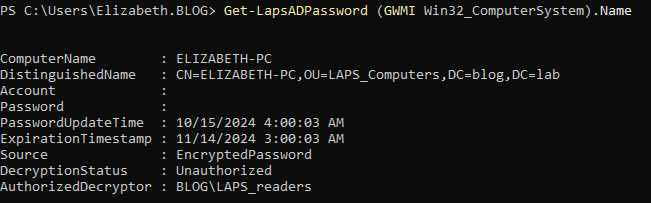
Now, we can see that the computer account is managed by LAPS, however, our user is not authorized to decrypt a password.
IMPORTANT: In new version of LAPS, even a user can retrieve a password blob, it does not mean that they can decrypt it.
Additionally, In previous version all the passwords were stored in plain text and there was no option to encrypt them, however, in new LAPS we have encryption on by default.
Now the question should be who can get it and decrypt it.
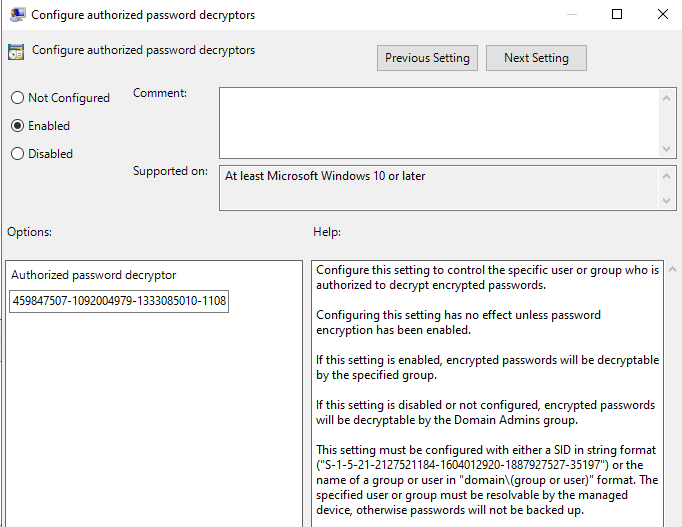
From a configuration standpoint, all LAPS settings can be managed through the AD Group Policy Object (GPO), including specifying authorized decryptors.
Below, you can see Windows LAPS configuration specifying who can decrypt the password.
As an example, it is configured with SID (Security Identifier) of an AD object, by default Domain Admin members are specified.
To further spot AD objects which can decrypt the passwords, we would like to issue Find-LapsADExtendedRights cmdlet with one mandatory “Identity” parameter.
To satisfy the Identity parameter, we need to retrieve the distinguished name of the Organizational Unit (OU) where LAPS is applied, which can be obtained from the output of the previous command
OPSEC:
Alternatively, we can use the following LDAP query one-liner if we prefer to avoid triggering an unauthorized event by running the previous command—assuming defenders have enabled event logging for reads of the ms-Mcs-AdmPwd attribute (which is not on by default).
($searcher = New-Object DirectoryServices.DirectorySearcher("(&(objectClass=computer)(name=ENTER_COMPUTER_NAME))")).Findall().Properties["distinguishedName"]
Once we have everything we can issue the command.
Find-LapsADExtendedRights -Identity "OU=LAPS_Computers,DC=blog,DC=lab"

From the output we can see that NT AUTHORITY\SYSTEM, BLOG\Domain Admins, BLOG\will objects hold ExtendedRightsHolders attribute on the OU. So, if we would have an access to any of this objects we can retrieve local admin passwords for all of machines in OU managed by LAPS.
Additionally, by running the net user /domain command, we can observe that BLOG\will refers to a user.
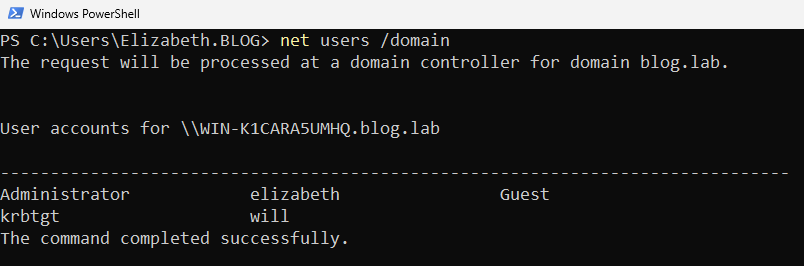
// To focus on the LAPS concept, we’ll assume that we’ve successfully compromised the user account ‘will’
We logged in as the user ‘will’ using the runas utility and issued the following command to retrieve the local admin password.
Get-LapsADPassword -Identity "elizabeth-pc" -asplaintext
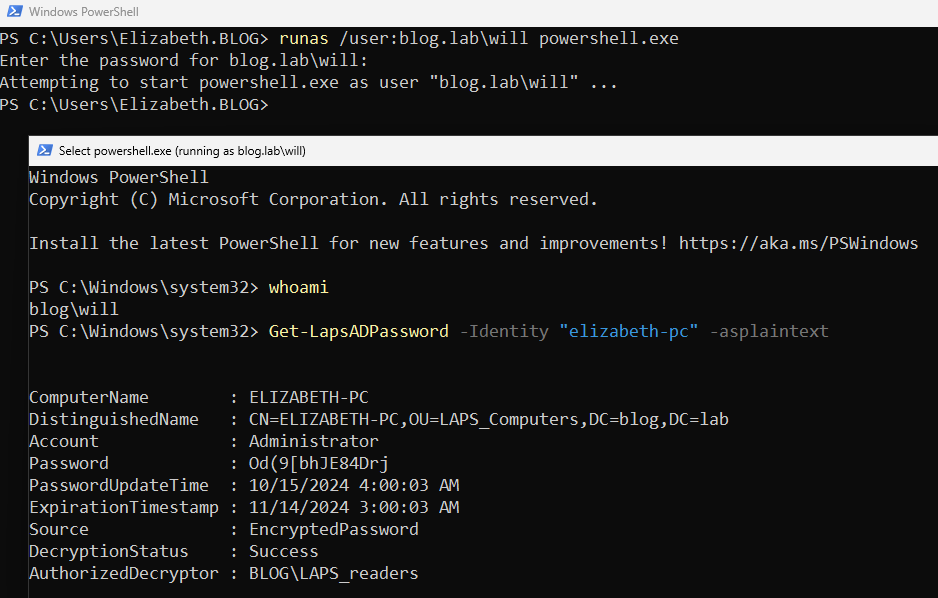
Congratulations! We’ve successfully retrieved the plaintext password. To summarize, we escalated privileges — first laterally from Elizabeth to Will, and then from Will to Local Administrator — by leveraging the latest version of LAPS, all while using only utilities available in a standard Windows 11 instance (10.0.22631 N/A Build 22631).
Summary
Microsoft has made significant progress in securing local admin passwords within Active Directory, evolving from the early days of storing them in the Group Policy SYSVOL folder to implementing a much more robust and secure solution today.
The current version of LAPS incorporates a range of advanced security features, including encryption, access controls, and audit capabilities, which collectively strengthen the overall security posture of the product.
These improvements ensure that sensitive credentials are better protected and that organizations have greater control and visibility over their administrative accounts. However, their move of installing LAPS toolkit by default became double-edged sword and equipped us with a way to be really stealthy while escalating privileges.
 Zensec